
Meet the New WebOS AI Website Editor
NYN’s WebOS website content management system (CMS) brings AI-powered page building, content embedding, and responsive previews into one editing workspace. Describe the page you want to create or update, add supported media through the Insert menu or drag and drop, and fine-tune its settings before publishing. Preview your content on desktop, tablet, and mobile without leaving the editor.
Build and Update Website Pages With AI
Tell WebOS’s built-in AI what you want, and watch your layout come to life in seconds. No coding, no design experience, no starting from scratch. It handles the heavy lifting so you can focus on your content.
Already have a page you want to update? Just tell the AI what to change—swap a layout, adjust spacing, or restyle a section—and it applies the update directly in the editor. Keep chatting and refining until the page looks the way you want.
Edit Text and Media in One WYSIWYG Workspace
The redesigned WebOS interface keeps your workflow focused and clutter-free. Its “what you see is what you get” (WYSIWYG) editor lets you work with text, images, video, and embedded content while reviewing your page layout.
Media tools support drag and drop, making it easy to bring supported files into your page. Drop in your media and WebOS opens the relevant settings, ready for you to adjust how it appears.
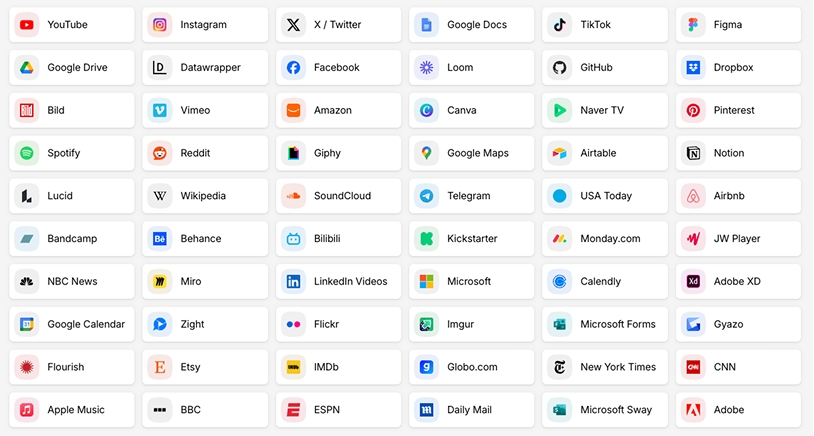
Add Media and Third-Party Embeds With the Insert Menu
Add images, videos, documents, links, and supported third-party embeds directly in the WebOS WYSIWYG editor. Use the Insert menu to explore your options, or drag and drop supported media into the editor to get started right away.
WebOS brings up the appropriate options for the media you drop in, so you can fine-tune its presentation without hunting through separate menus. Bring videos, social posts, and other supported external content together with your own text and media—all in the same editing workspace.
Review Your Website Layout Before Publishing
Spot spacing problems, awkward image crops, or text overflow before visitors see them. Review your layout and make adjustments before publishing, so your content is ready for different screen sizes.
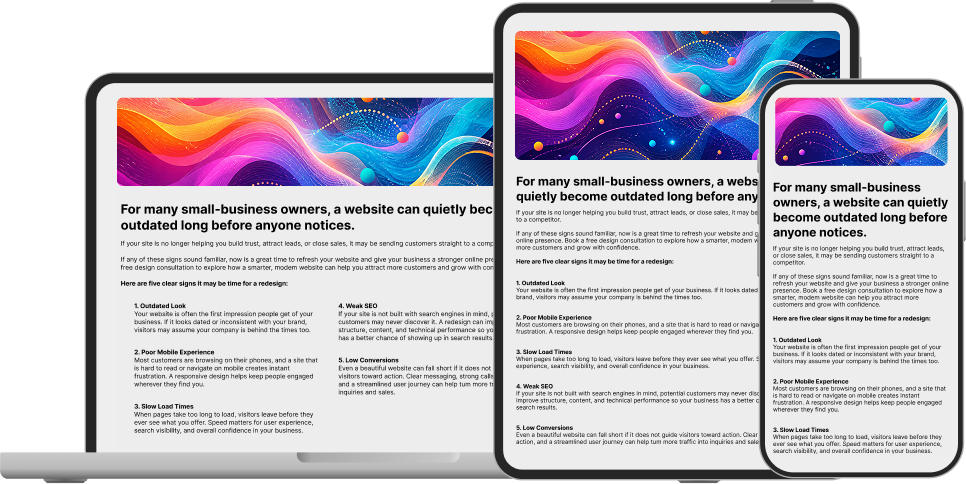
Preview Pages on Desktop, Tablet, and Mobile
Switch between desktop, tablet, and mobile previews with a single click. Check how your text, images, and embedded content fit at different screen sizes directly inside WebOS, without opening multiple browser windows.